Reviewer handbook > CMT profile
This page summarises the steps required to update your reviewer profile.
If you have any question, please contact the Technical Program Committee chairs of the conference.
Please pay attention to the three mandatory steps and the strongly recommended step.
It can look a lot, but if you follow the steps it can be done in 5 minutes, which is worthwhile to ensure an efficient reviewing process.
¶ 1. Mandatory steps
¶ 1.1. Accept the reviewer invitation
You have received an email with a link to accept the invitation:

If you have not received this email, please see Why do I not receive emails from the conference? in the FAQ.
Interspeech uses CMT as Conference Management Software to manage the submissions and the reviewing process. To accept the invitation, you need a CMT account with the same email address that the one used to invite you.
| You do not have a CMT account |
|
| You have a CMT account with the email address used to invite you | Simply click on the Accept link. |
| You have a CMT account with another email address | Please reply to the invitation email by providing the email address on which you prefer to be invited; We will issue a new invitation. |
When accepting the invitation, you can set the maximum number of submissions you agree to review. This is a strict limit and we will not assign you more submissions to review. Given the high number of submissions, we are kindly asking reviewers to accept a minimum of 3 submissions to review; more are naturally appreciated. Later in the review process, you might be approached by an Area Chair (Meta-Reviewer in CMT) to check whether you agree to review one or more additional submission(s) if they think you are the appropriate reviewer. Please visit How can I set up the maximum number of papers I agree to review? in the FAQ for further details.
Note that you do not receive any confirmation email, but if you can see in CMT a role as "Reviewer" in the upper banner links to “Interspeech2026", the invitation is validated:

¶ 1.2. Enter your Subject Areas
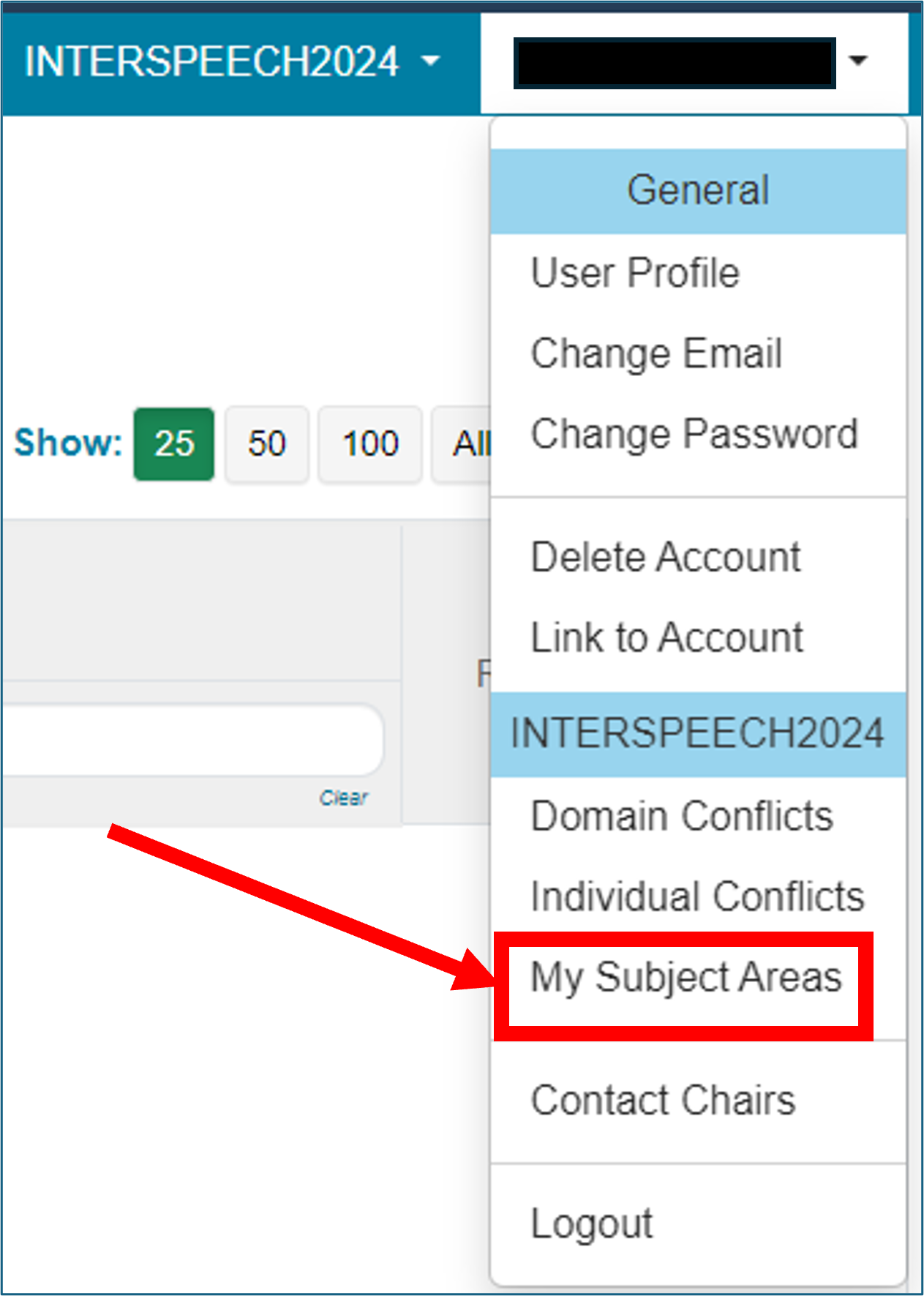
Entering Subject Areas is essential to define your scientific profile and assign you submissions to review.
How to do that:
Note: please do NOT select the title of the area, but only sub-topics (e.g. 01.04, 01.05 and not 01 only). It increase your chances to get more accurate assignments. |
 |
¶ 1.3. Enter your Domain Conflicts
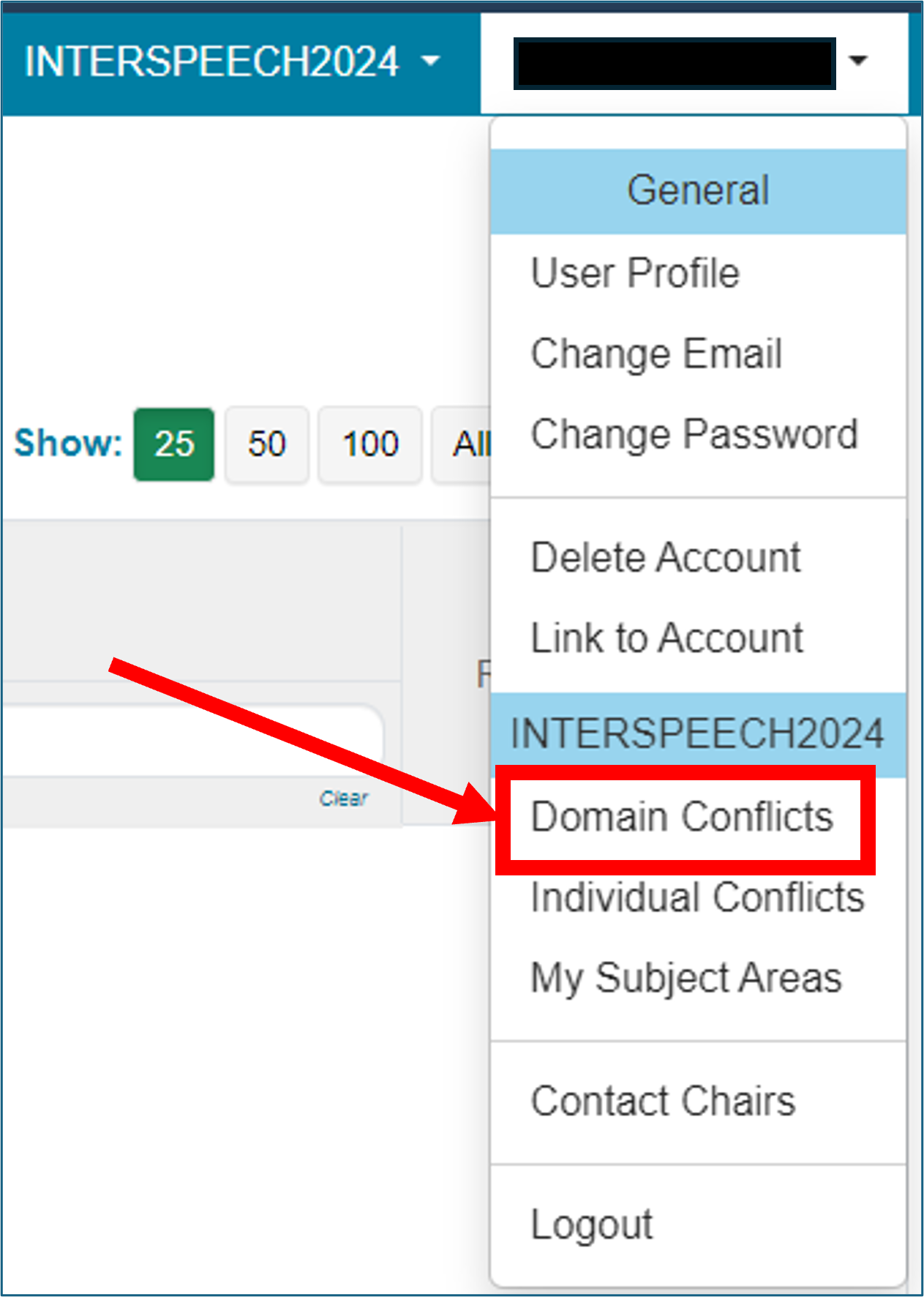
Entering your Domain Conflict will prevent Conflict of Interest during the assignment and review process.
How to do that:
|
|
¶ 2. Strongly recommended step: provide your Semantic Scholar ID
¶ 2.1 Background
Matching submitting papers to reviewers is essential for achieving the high level of scientific evaluation we all wish to offer authors.
Due to the very large number of submissions expected, this process will be mostly automated based on your Subject Areas and matching scores provided by the Toronto Paper Matching System (TPMS). Feedback from previous Interspeech conferences suggest that the use of TPMS results in better matches than those based solely on the areas of expertise. Please visit in the FAQ How does the reviewer assignment process work? for further details.
TPMS works by matching the submitted papers to papers written by the available reviewers (for details on how TPMS works, please see their about-us page). Hence, to get good matches with TPMS we need a paper-populated TPMS account for each reviewer.
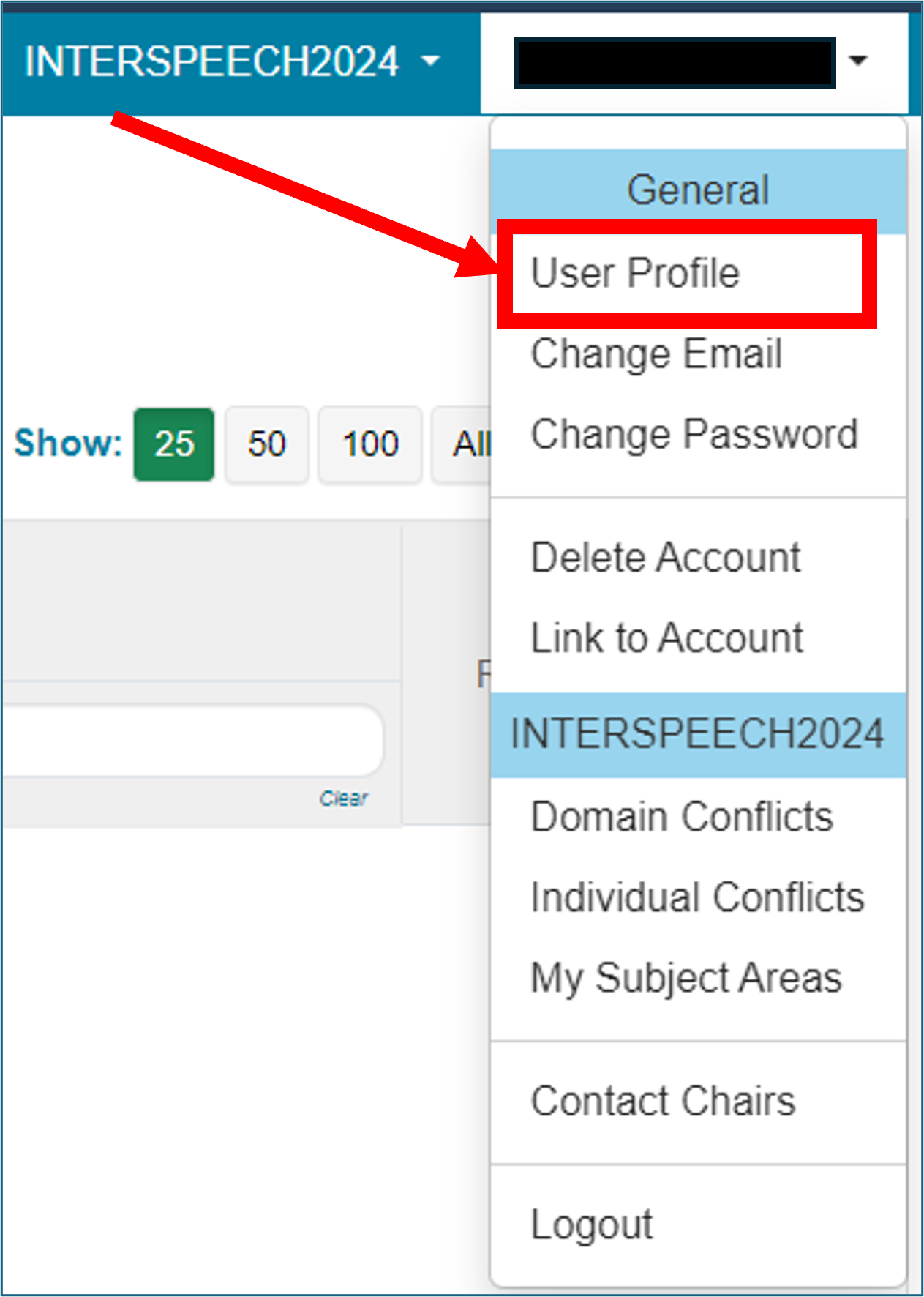
Since last year, TPMS has been implementing a new automatic system to pre-populate the TPMS account of a reviewer with papers publicly available on her/his Semantic Scholar (SS) page. To this end, please add your SS identifier in your CMT profile if you have not already done so. SS pages are created automatically for researchers that have published papers.
Here are the steps of the process:
- You provide your SS ID in CMT
- We transfer to TPMS your SS ID and CMT email address
- If no TPMS account exists for your CMT email address, it creates one
- TPMS updates the TPMS account associated with your CMT email address with the papers available on the SS page
- We inform you per email when the process is done
- You can review your TPMS account and possibly delete/add papers (see following optional step)
¶ 2.2 How to do that
Even if you have already a TPMS account, we invite you to provide your Semantic Scholar ID in CMT. See section 3 for further details.
|
|
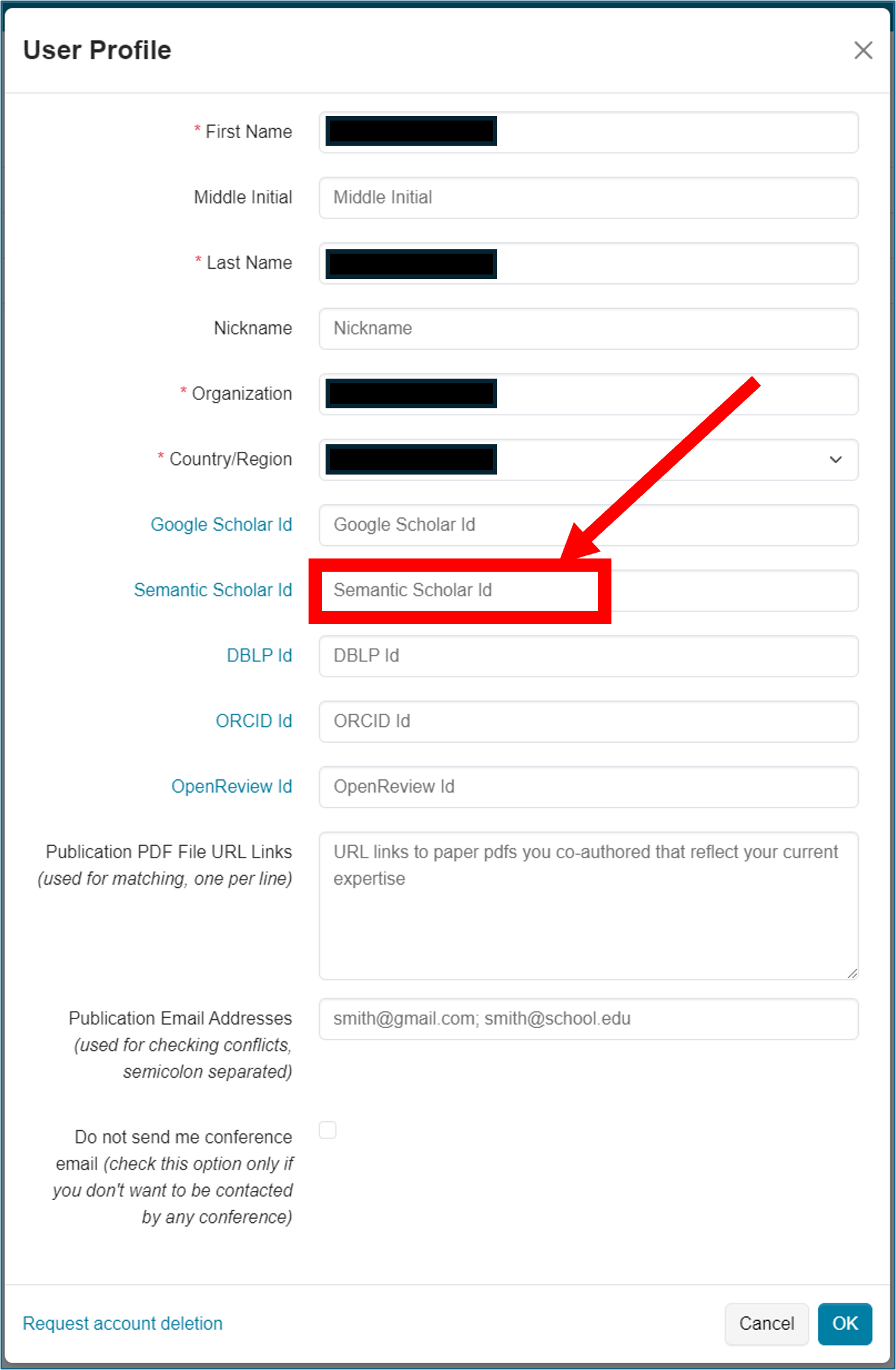 |
If you do not know where to find your Semantic Scholar ID, please see Where can I find my Semantic Scholar ID? in the FAQ.
¶ 3. Optional (but recommended) step: Create/Update your TPMS account
¶ 3.1 Background
Matching submitting papers to reviewers is essential for achieving the high level of scientific evaluation we all wish to offer authors.
Due to the very large number of submissions expected, this process will be mostly automated based on your Subject Areas and matching scores provided by the Toronto Paper Matching System (TPMS). . Feedback from previous Interspeech conferences suggest that the use of TPMS results in better matches than those based solely on the areas of expertise. Please visit in the FAQ How does the reviewer assignment process work? for further details.
TPMS works by matching the submitted papers to papers written by the available reviewers (for details on how TPMS works, please see their about-us page). Hence, to get good matches with TPMS we need a paper-populated TPMS account for each reviewer.
You can shape your scientific profile by importing into TPMS the subset of your papers that correspond to the topic you would like to review.
¶ 3.2 What to do
You need a TPMS account with the same address email as your CMT email address. You can register on the TPMS registration page.
Creating and updating your TPMS account may slightly collide with the automatic update from your Semantic Scholar page (see section 2 above). We have therefore summarised your actions in the table below:
| You have provided your SS ID in CMT | You have NOT provided your SS ID in CMT* | |
| You have already a TPMS account with updated papers |
1. Wait for a notice from us informing you that your TPMS account has been updated with the papers available on your Semantic Scholar page
|
Nothing |
| You have already a TPMS account not updated | Update your TPMS account be uploading manually your representative papers | |
| You do not have a TPMS account | 1. Wait for a notice from us informing you that a TPMS account has been created for you and pre-populated with the papers available on your Semantic Scholar page 2. Register to TPMS with your CMT email address 2. Review your TPMS account by removing automatically added papers or adding new papers |
Create a TPMS account and update it with your representative papers |
* In our attempt to assign accurate reviewers to submissions, we might manually recover your Semantic Scholar ID and create a TPMS for you that we can use during the assignment process